 ExploreZone
For the team
Verify businesses
Review a submitted business, approve it, ask for changes or reject it.
Why verification exists #
Customers trust the Verified badge. A business goes live only when a person on the team approves it. This is the most important job on the team.
Open the queue #
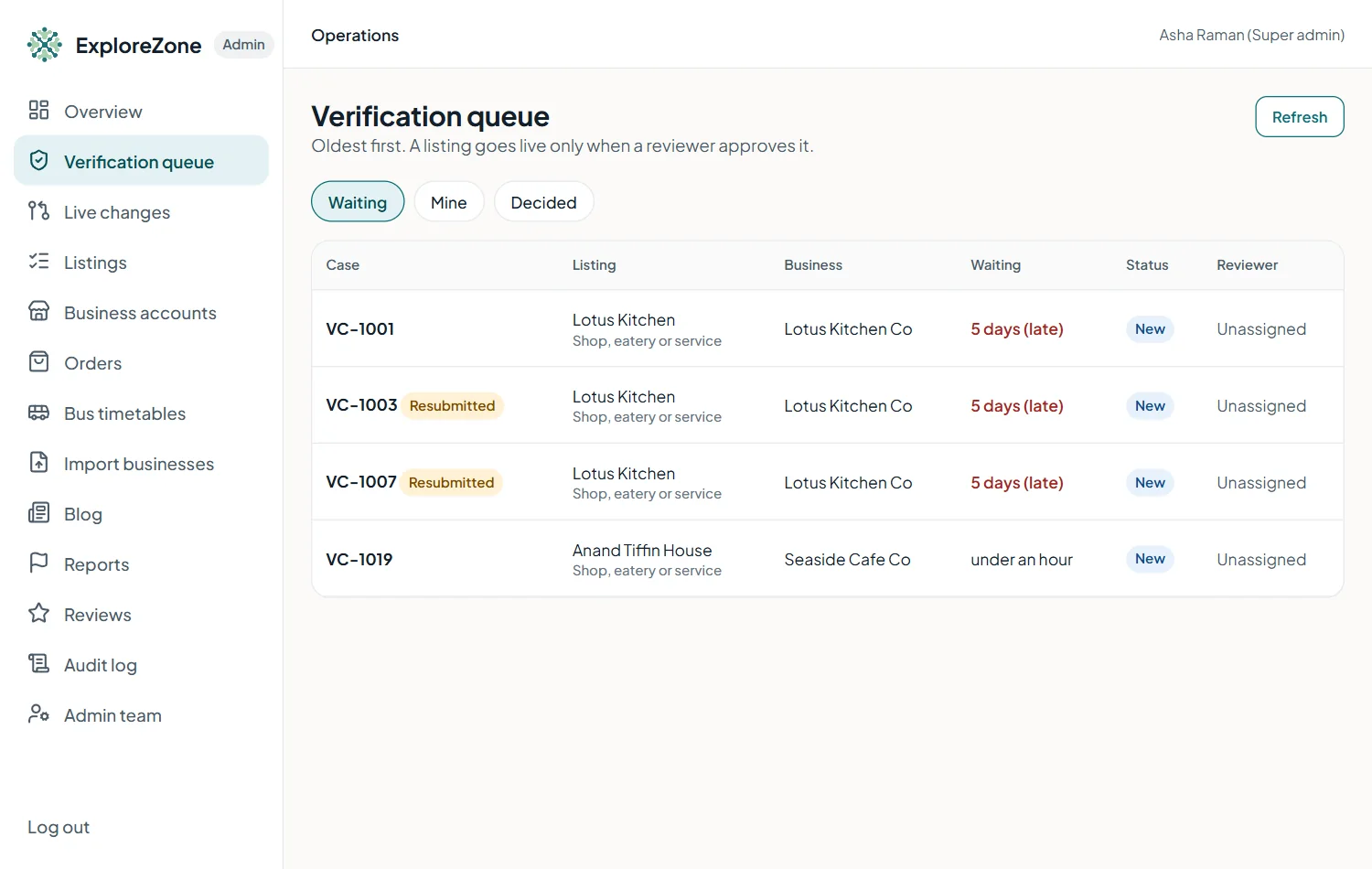
Go to Verification queue. Cases are listed oldest first. Each shows the business, the type, the owner and the time waiting.
Review a case #
- Open the case and press Start review. The case is now yours.
- Look at everything the owner submitted: name, category, address, map position, hours, photos and description.
- Check the map position against the address and the photos.
- Check the photos are of this business. Look for stolen or stock pictures.
- Check the contact details and phone the business if you are unsure. Write what you found in the private note (the business never sees it).
- For drivers and guides, ask to see the permit or registration, and note it.
- Decide.
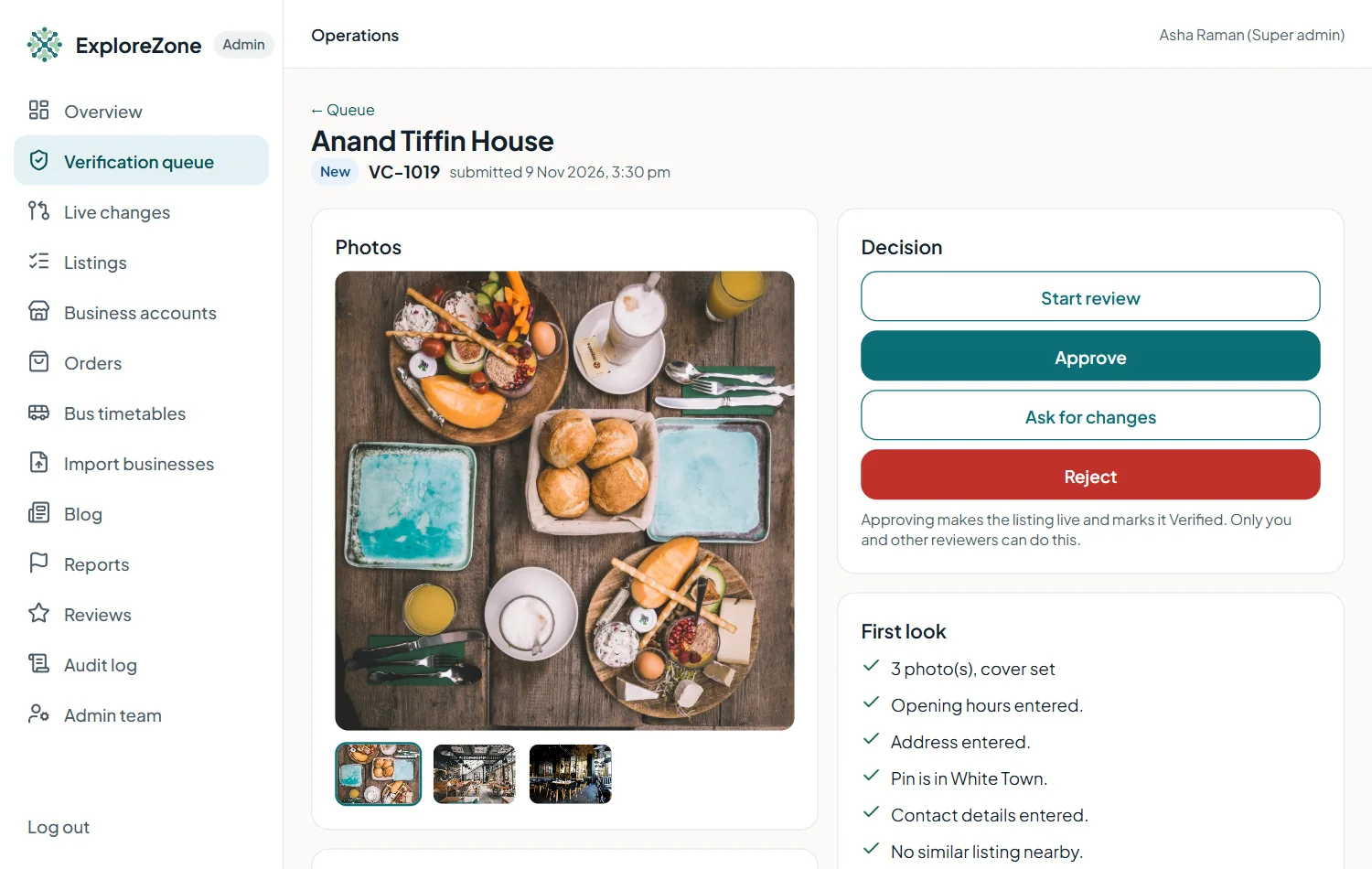
The decisions #
| Decision | When | What happens |
|---|---|---|
| Approve | Everything is correct. | The listing goes Live and the owner is emailed. |
| Ask for changes | Something can be fixed. | Choose the topic and write exactly what to change, for example "Photos: the cover photo is not of your shop". Press Add a specific item for each problem. The owner fixes it and resubmits. |
| Reject | The business cannot be listed. | Write a clear, polite reason (at least 10 characters) and tick the box to confirm. The owner is emailed. |
Ordering is separate #
Approving a listing does not let it take orders. Ordering is approved separately, see Orders and ordering approvals.
Last updated 2026-11-15. Something unclear or out of date? Write to hrdoisoftwares@gmail.com or call 6383281461.