 ExploreZone
For the team
Import many businesses from a spreadsheet
Add businesses you have visited by uploading a CSV file, check the preview and import as drafts or publish.
When to use it #
After you have spoken to businesses and collected their details, you can add many at once instead of typing each one.
Prepare the file #
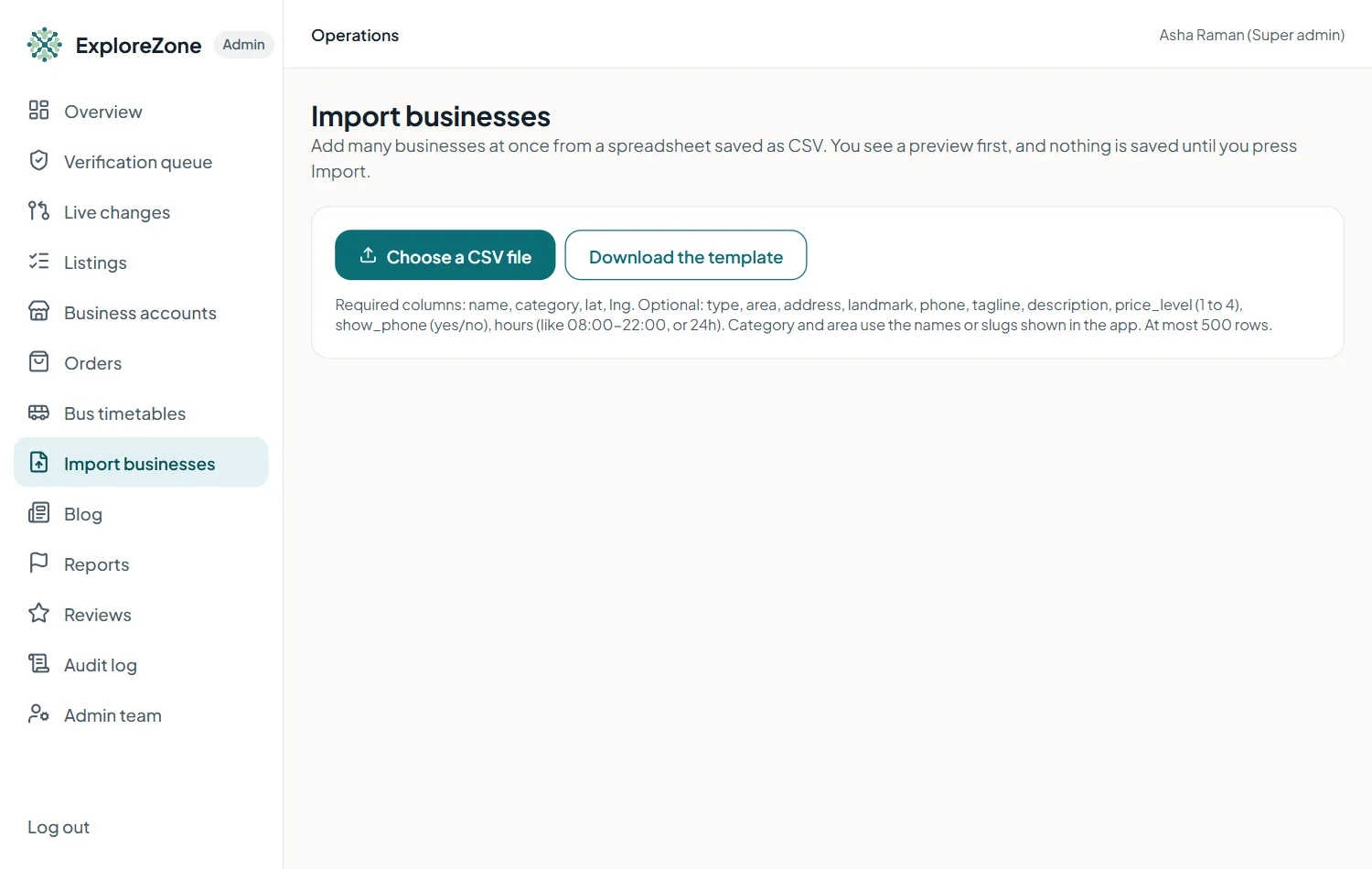
- Open Import businesses and press Download the template.
- Fill one row per business in a spreadsheet and save it as CSV.
Required columns: name, category, lat, lng. Optional: type, area, address, landmark, phone, tagline, description, price_level (1 to 4), show_phone (yes or no) and hours (like 08:00-22:00, or 24h). Category and area use the names or slugs shown in the app. At most 500 rows.
Preview, then import #
- Press Choose a CSV file.
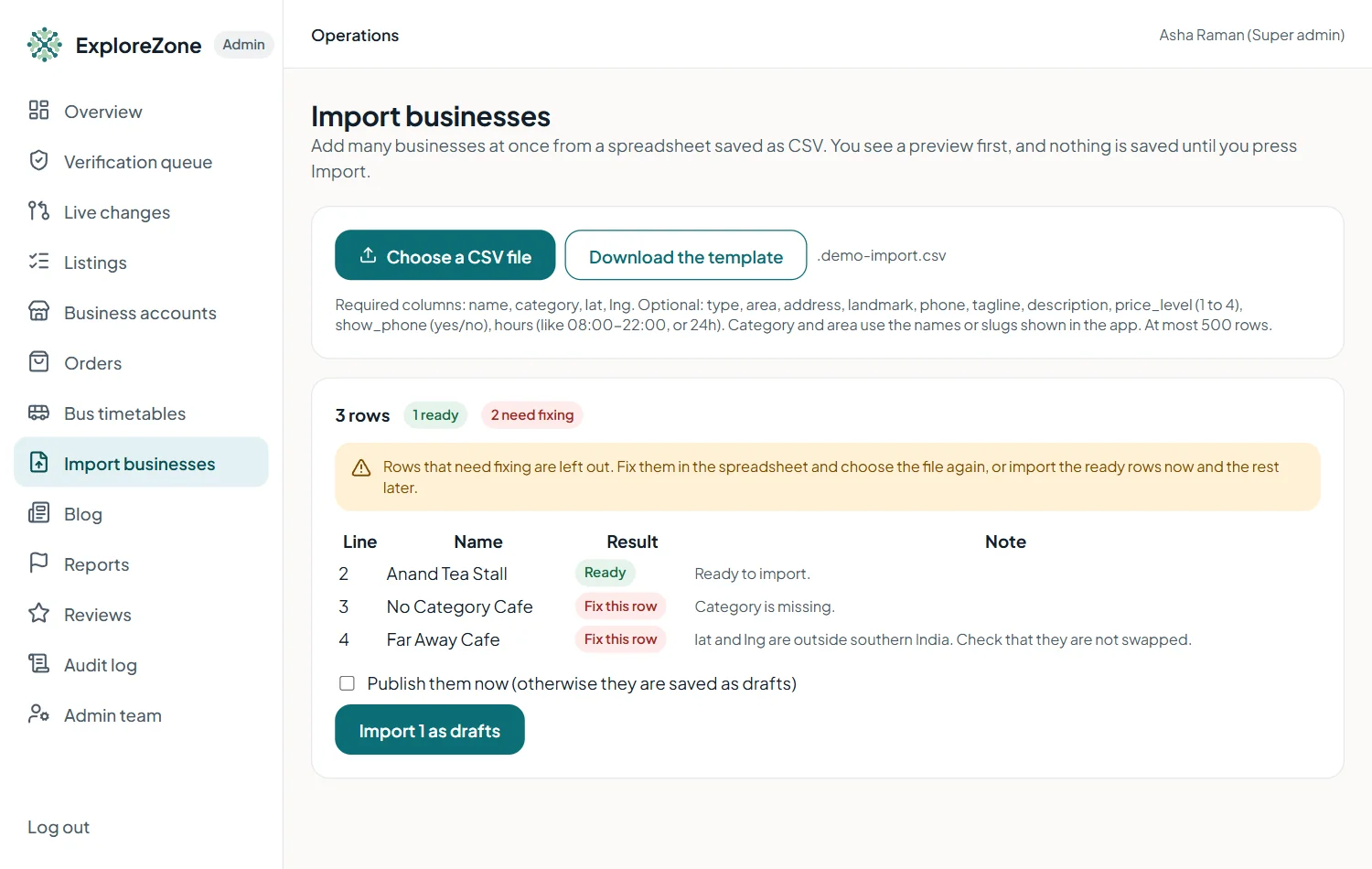
- Read the row-by-row preview. Each row is Ready, Skipped (already there) or Fix this row. Nothing is saved yet.
- Fix problem rows in your spreadsheet and choose the file again, or import the ready rows now.
- Press Import n as drafts. They appear in Listings as drafts that customers cannot see.
- To publish at once, tick Publish them now and confirm that the businesses agreed to be listed and that you checked the details.
Last updated 2026-11-15. Something unclear or out of date? Write to hrdoisoftwares@gmail.com or call 6383281461.