 ExploreZone
Complete your listing
Fill in details, opening hours, photos and your menu so customers can find and trust you.
Open My businesses, then your business. The editor has tabs: Details, Hours, Photos, Menu, Seafood (seafood sellers), Ordering and Status. A checklist shows what is still needed, and a score shows how complete the page is.
What is required to submit #
| Needed | Why |
|---|---|
| Street address | So visitors can find you. |
| Opening hours | So the app can say open or closed. |
| At least 3 photos, one as cover | Pages with pictures are chosen more often. |
A description and a menu are not required but strongly recommended.
Details #
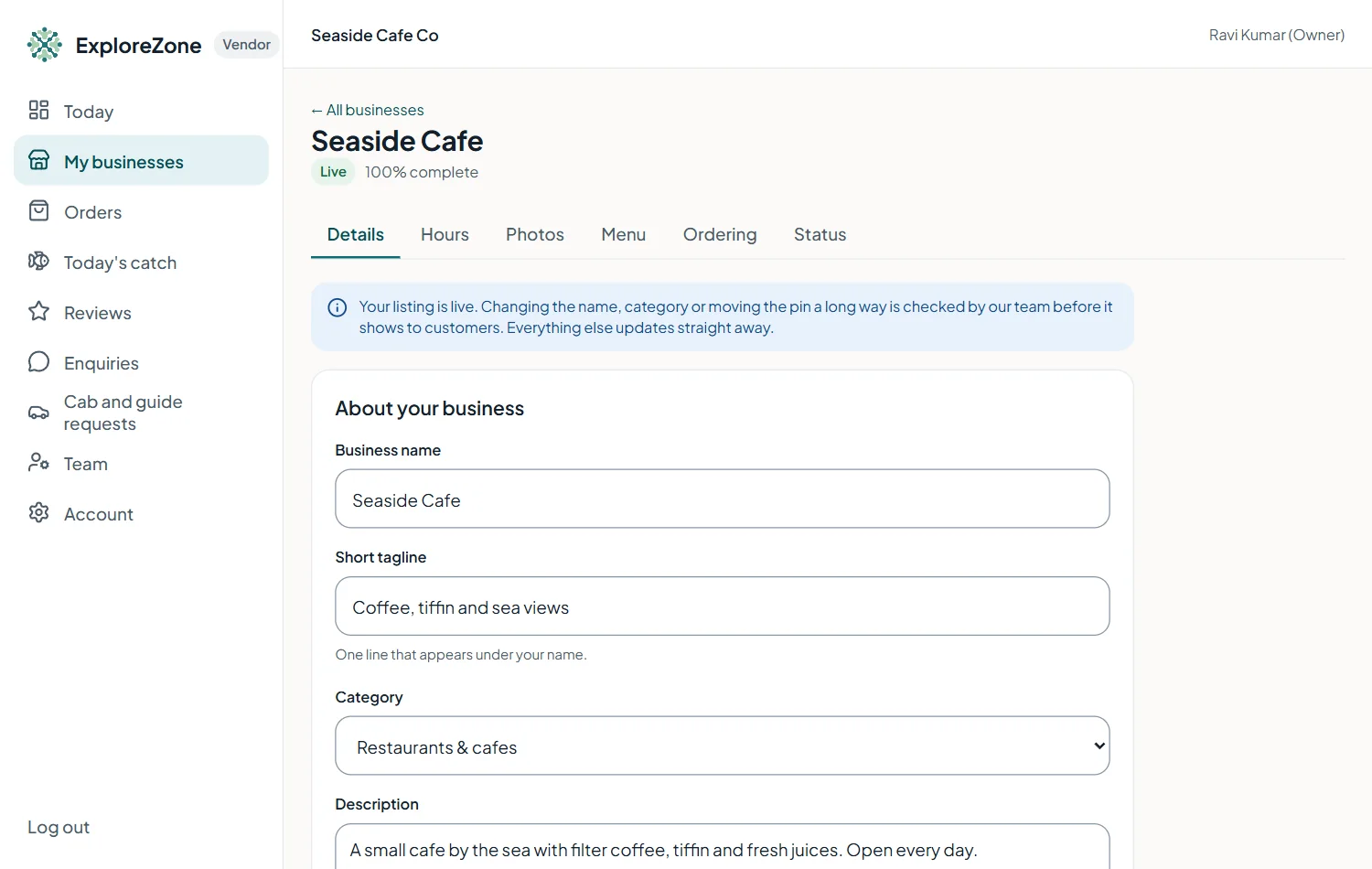
- Tagline and description: a few sentences about what you offer.
- Address, landmark and pincode.
- Phone, WhatsApp and email: you choose whether each one is shown to customers. Switch off what you do not want public.
- Price level and a price note, for example "Coffee from 120".
- Website if you have one.
Hours #
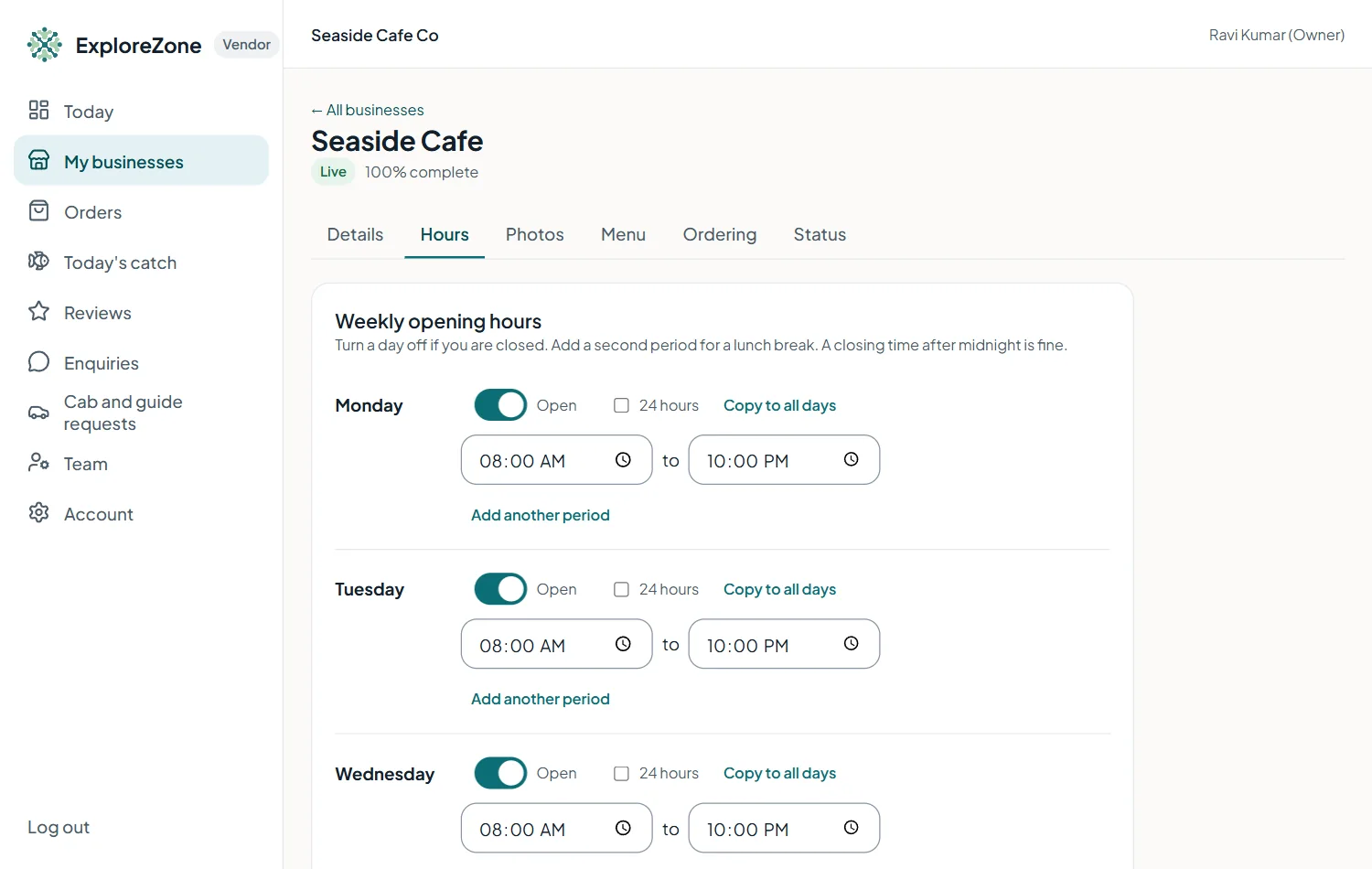
Set the opening and closing time for each day. Turn a day off if you are closed, add a second period for a lunch break, tick 24 hours if you never close, and use Copy to all days to save time. A closing time after midnight is fine. Press My hours are still correct now and then: when hours have not been confirmed for a while, customers see a notice.
Photos #
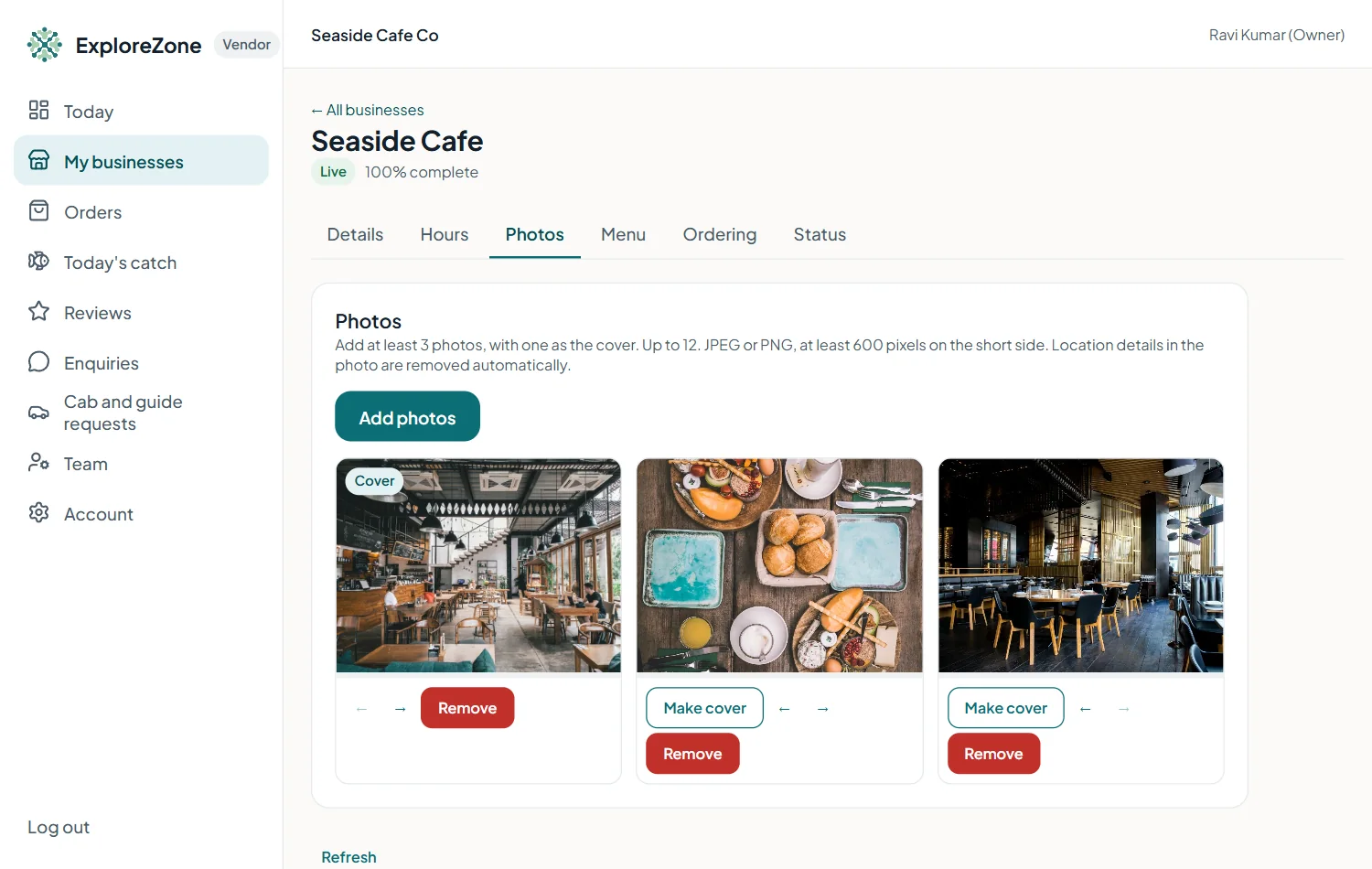
Add at least 3 photos and choose one as the cover. You can add up to 12.
- Take photos in daylight, near a window or outside.
- Use JPEG or PNG, at least 600 pixels on the short side, up to 10 MB each.
- Write a short description of each photo.
- Drag to change the order.
Photos are re-saved without location data, so your phone's GPS position is not shared.
Menu #
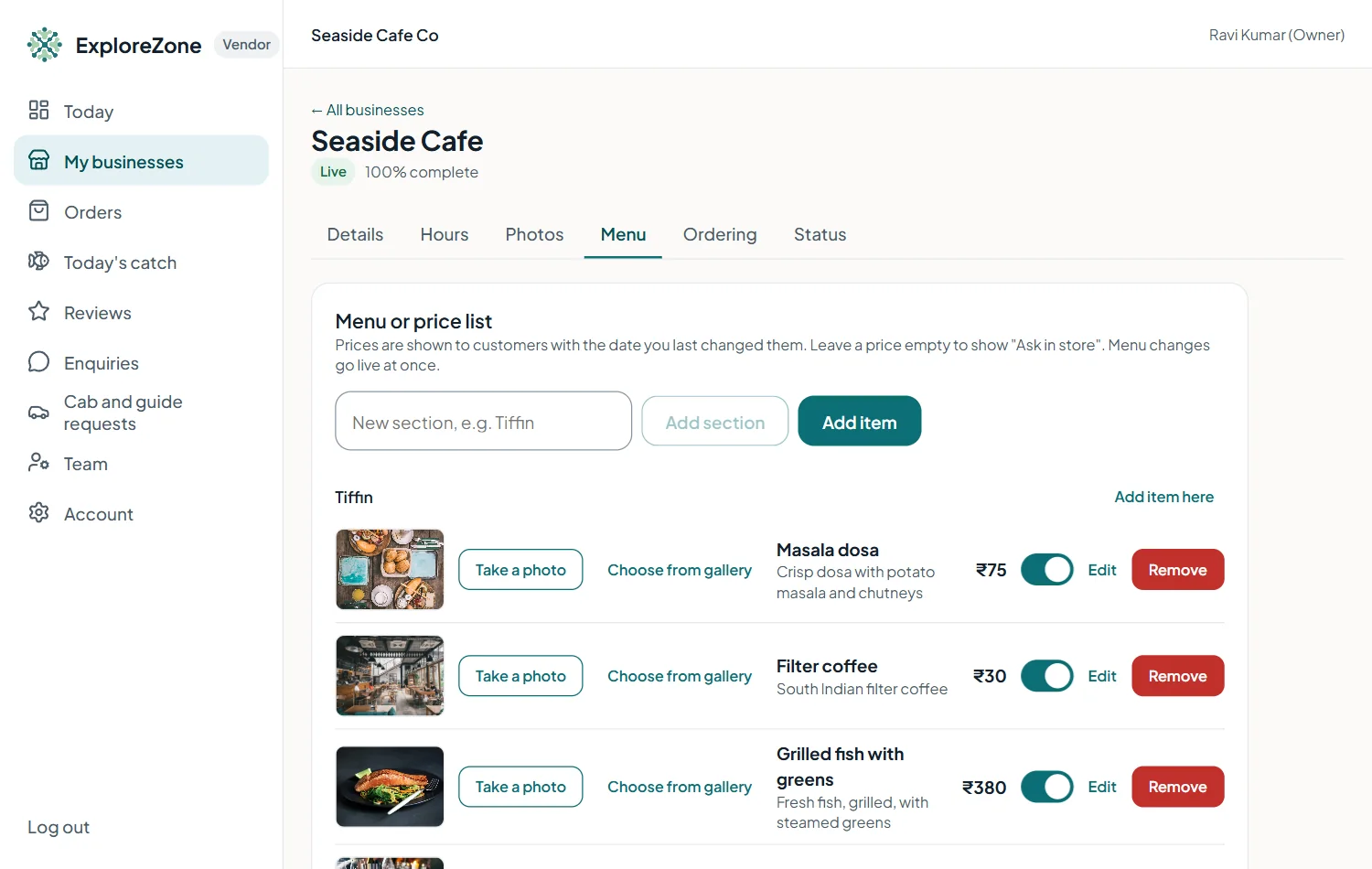
If you sell food or services with prices, add a menu.
- Add a section, for example Tiffin or Drinks.
- Add items with a name, price, a veg or non-veg mark and an optional description.
- Add a photo to an item with Take a photo: on a phone this opens the camera.
- Mark an item unavailable when it runs out, and mark popular items.
Last updated 2026-11-15. Something unclear or out of date? Write to hrdoisoftwares@gmail.com or call 6383281461.